Before & After: The Transformation


How to setup Shopify Product Engraving App
1. Configure your Engraving
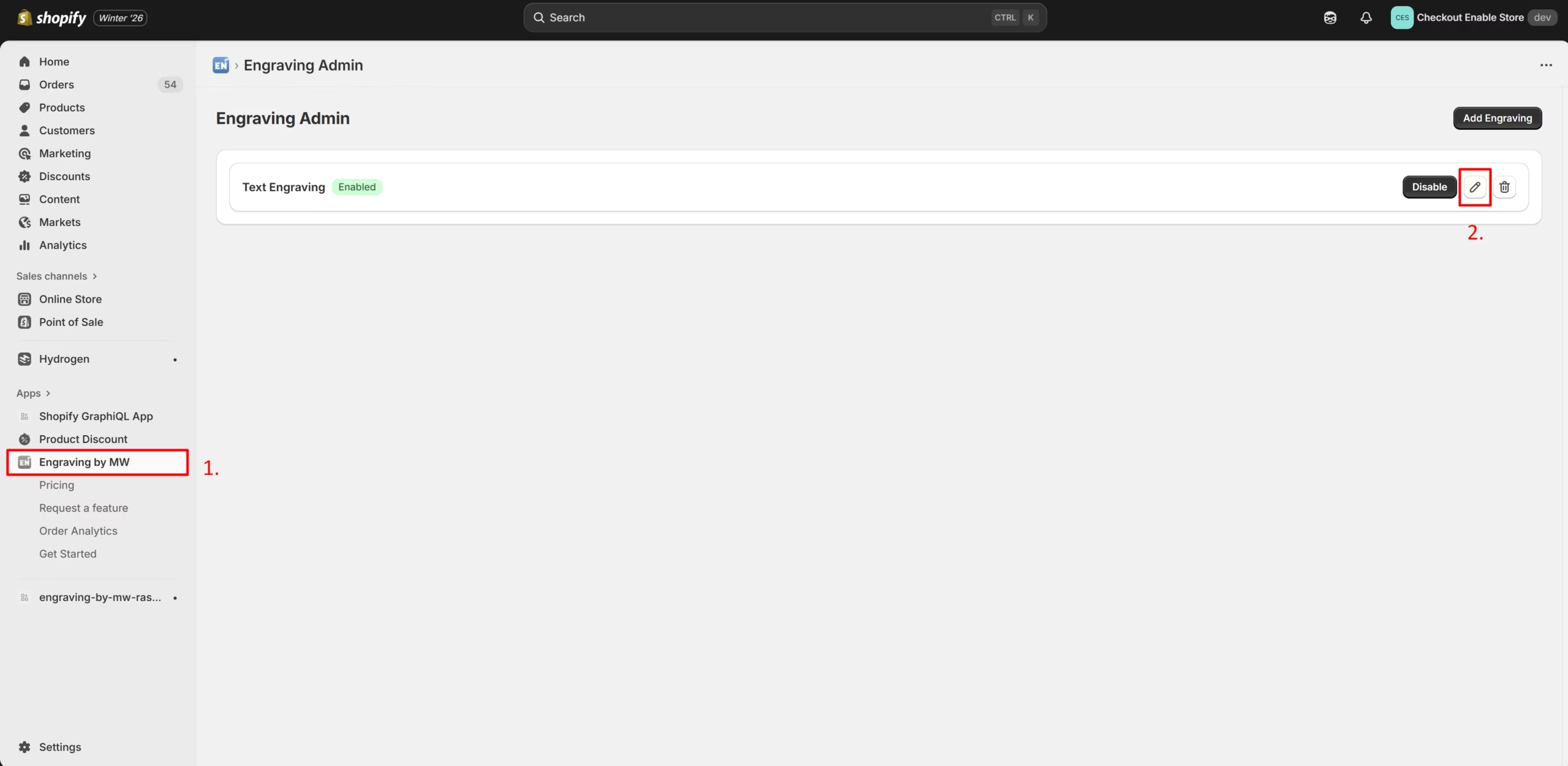
Open the app dashboard. You will see a default engraving configuration already created for you. Click the Edit button to customize it.
2. Customize Input Rules
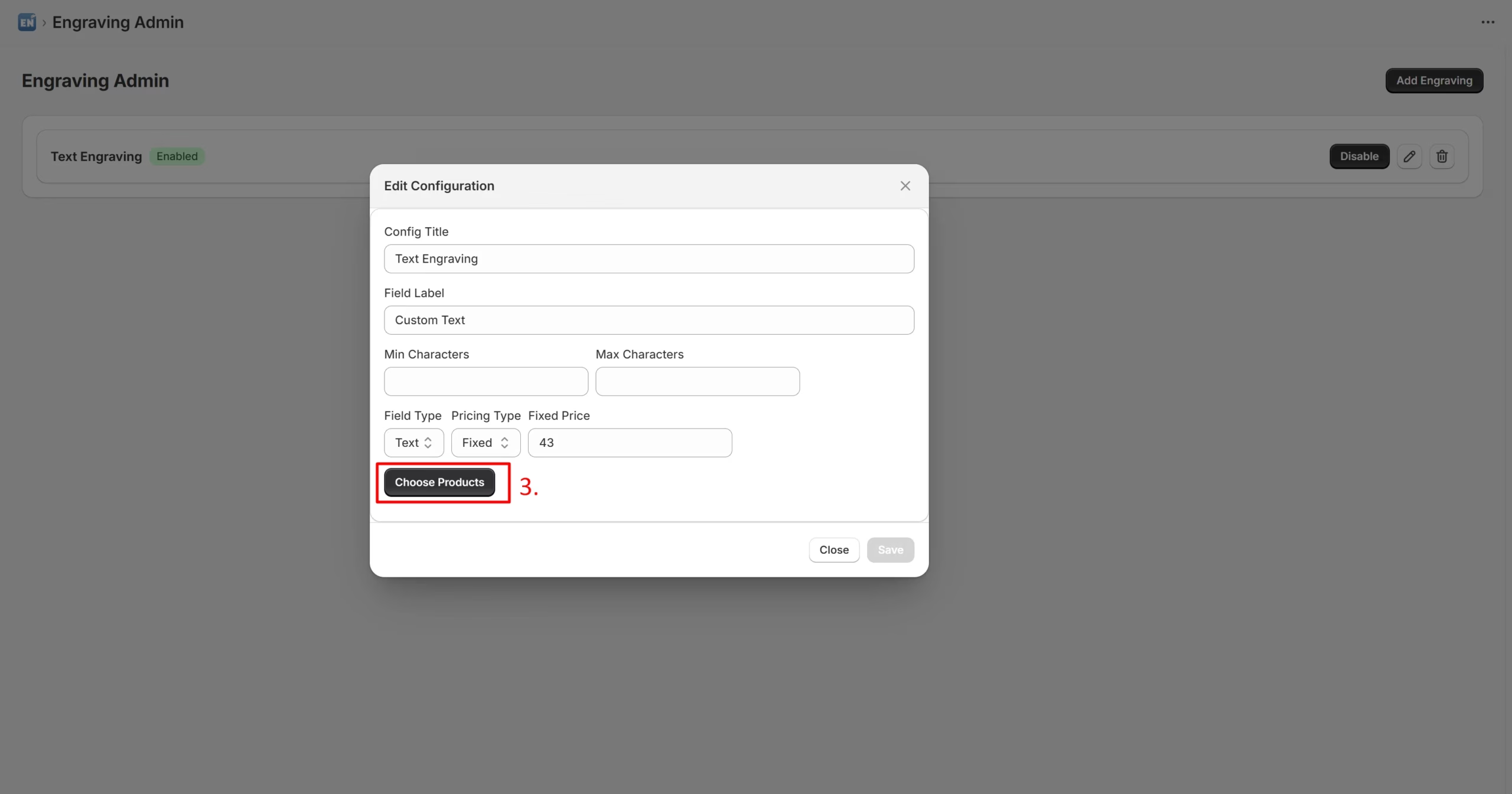
In the edit modal, you can define how the customer interacts with the option:
- Update the Title and Label (e.g., “Add Name”).
- Set Min/Max character limits.
- Choose the Input Type (Text or Number).
3. Assign Products & Save
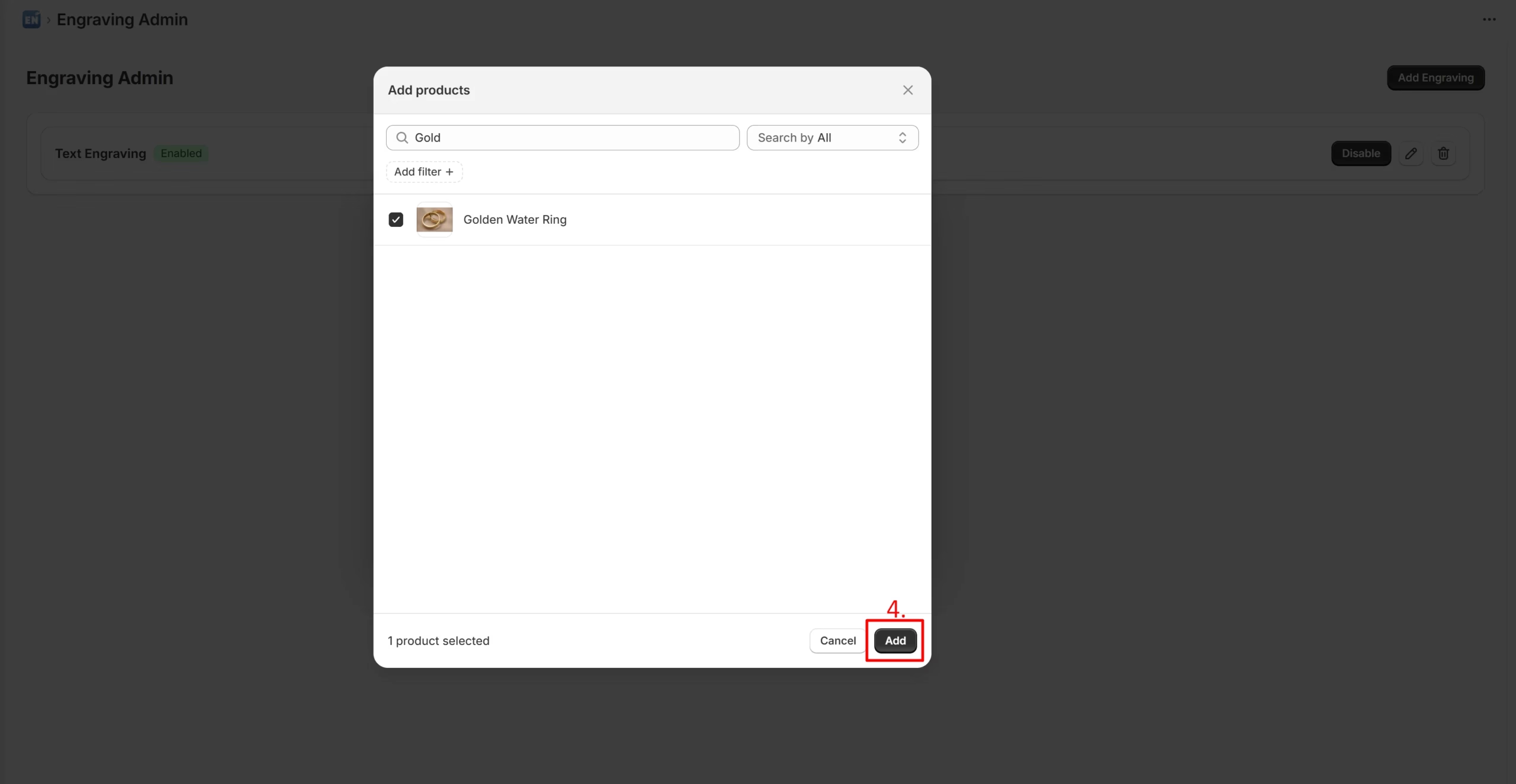
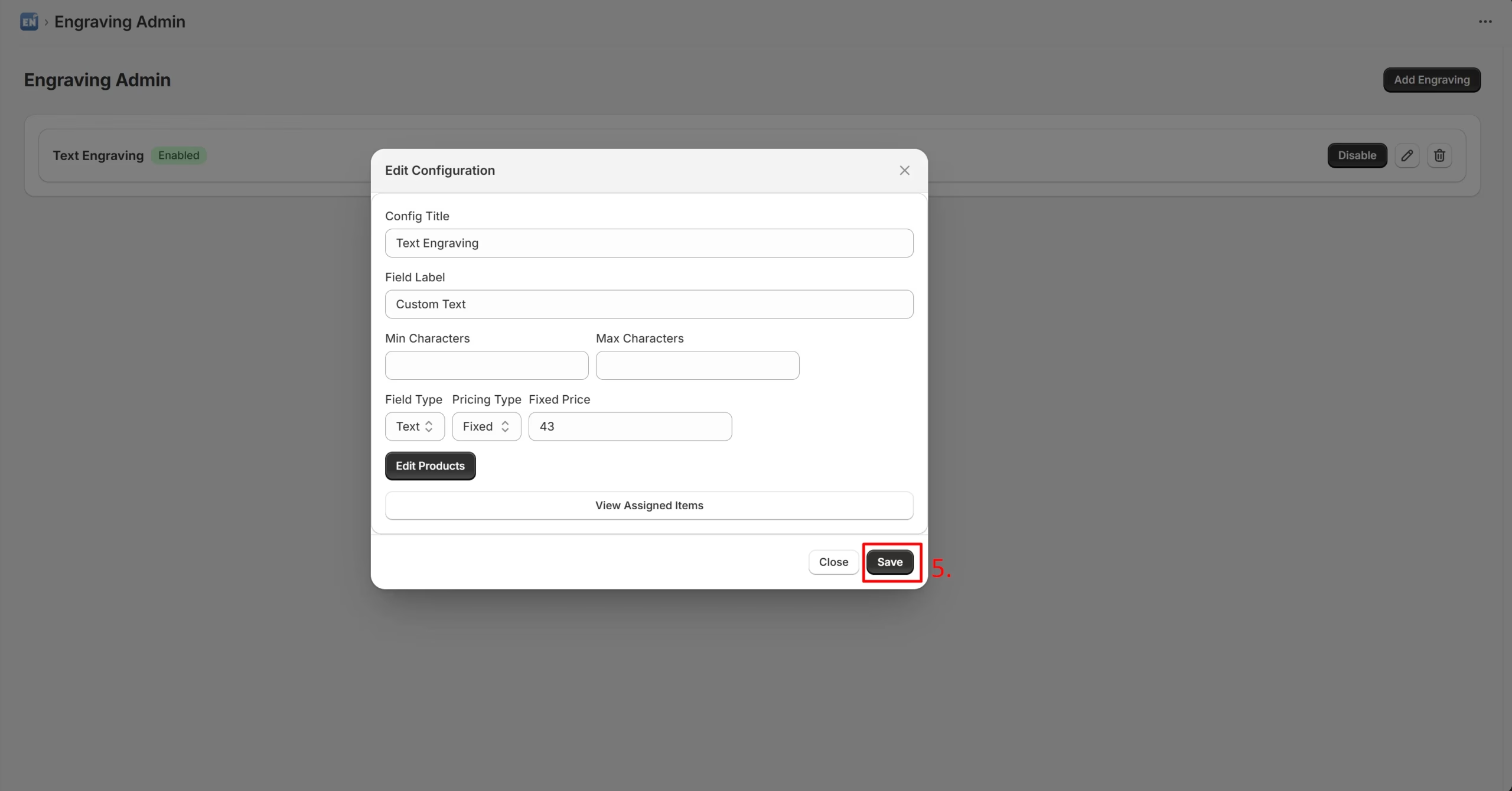
Select the specific products you want to offer engraving on, click Add, and then click Save to store your configuration.
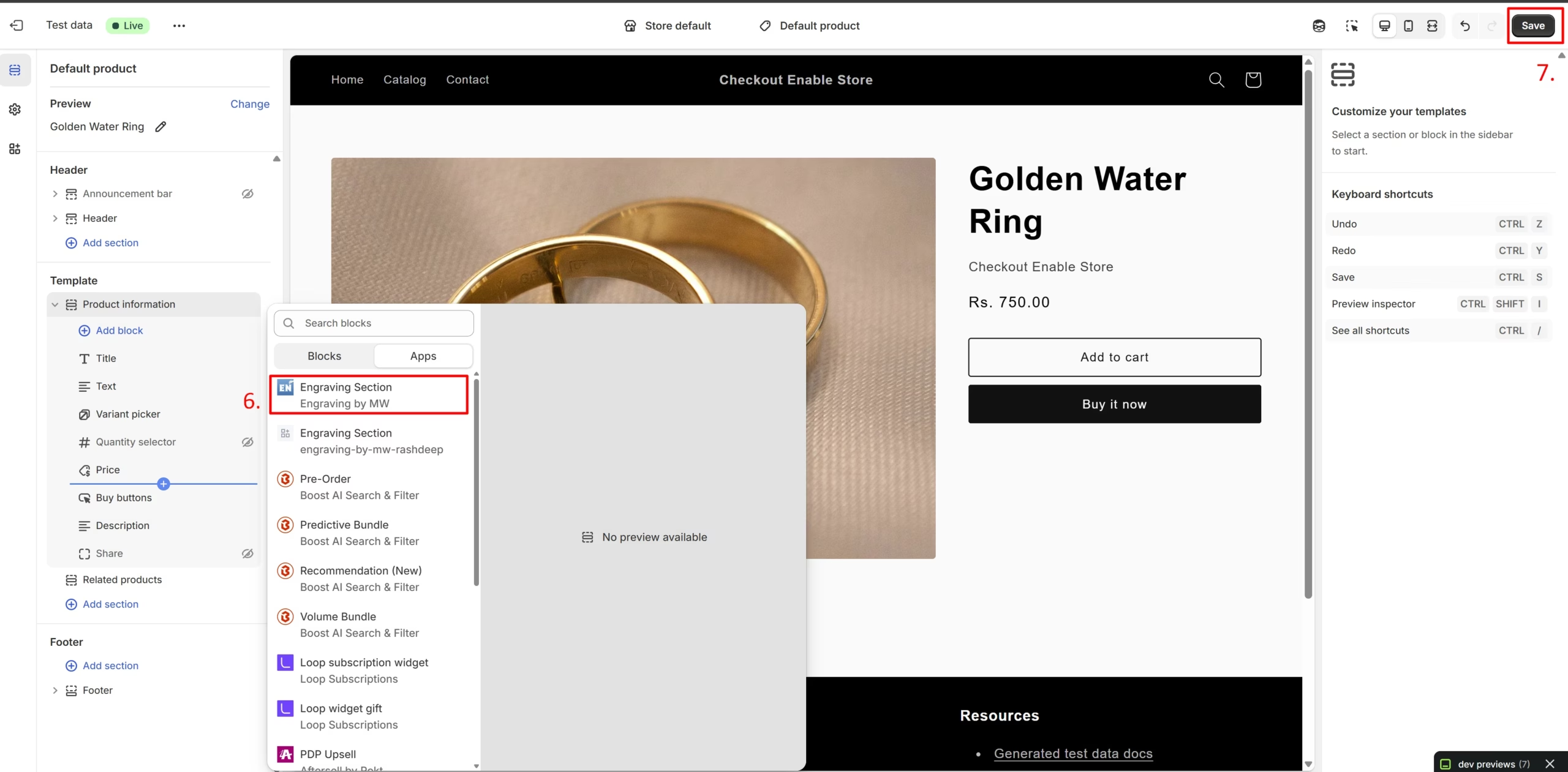
4. Enable the App Block (Crucial Step)
To make the option visible to customers, you must add the App Block to your theme:
- Go to your Theme Editor (Online Store – Customize).
- Navigate to the Product Template.
- Click “Add Block” and select Engraving Section.
- Drag the block to your desired location (we recommend placing it just above the Buy Button).
- Save your theme changes.
Done! Your engraving option is now live.
Frequently Asked Questions
Brands That Trust Our Shopify Development Agency